Purchase Receipt
Purchase Receipt is an inventory transaction that records the receipt stock from a supplier after a purchase has been made.
Purchase Receipts record inward movement of stock.
Creating a Purchase Receipt
There are two ways to create a Purchase Receipt.
From a Purchase Invoice
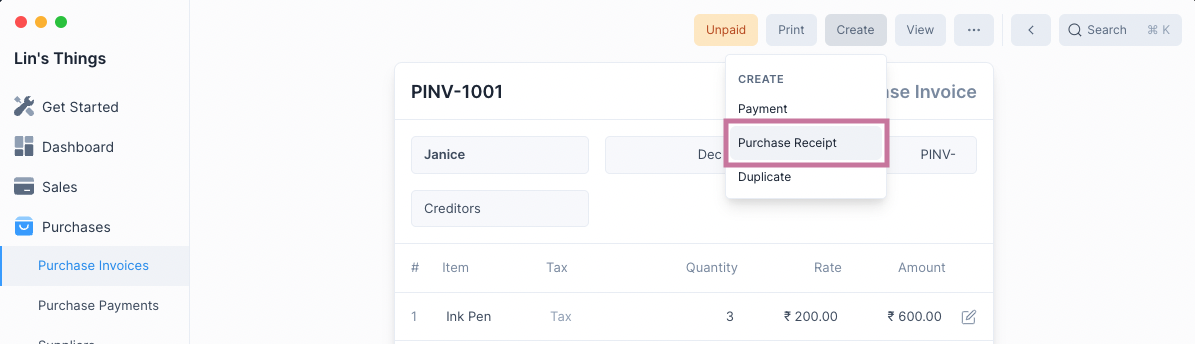
Since a receipt of stock follows a purchase, you can create a Purchase Receipt after submitting a Purchase Invoice.
To do this select Purchase Receipt from under the Create menu button.
::: tip Back Reference
This will create a Purchase Receipt with a reference to the Purchase Invoice and allows you to view all created Purchase Receipts from the Purchase Invoice. :::
From the List View
To do this first navigate to the Purchase Receipt page: then click on the blue button.
The creation method is shared with with other transactional entries, for more information check this link.
::: warning No Back Reference
This method doesn't create links to any Purchase Invoices and is an isolated entry. :::
Purchase Receipt Form
After selecting one of the above two methods of creating a Purchase Receipt, you will see the Purchase Receipt form.
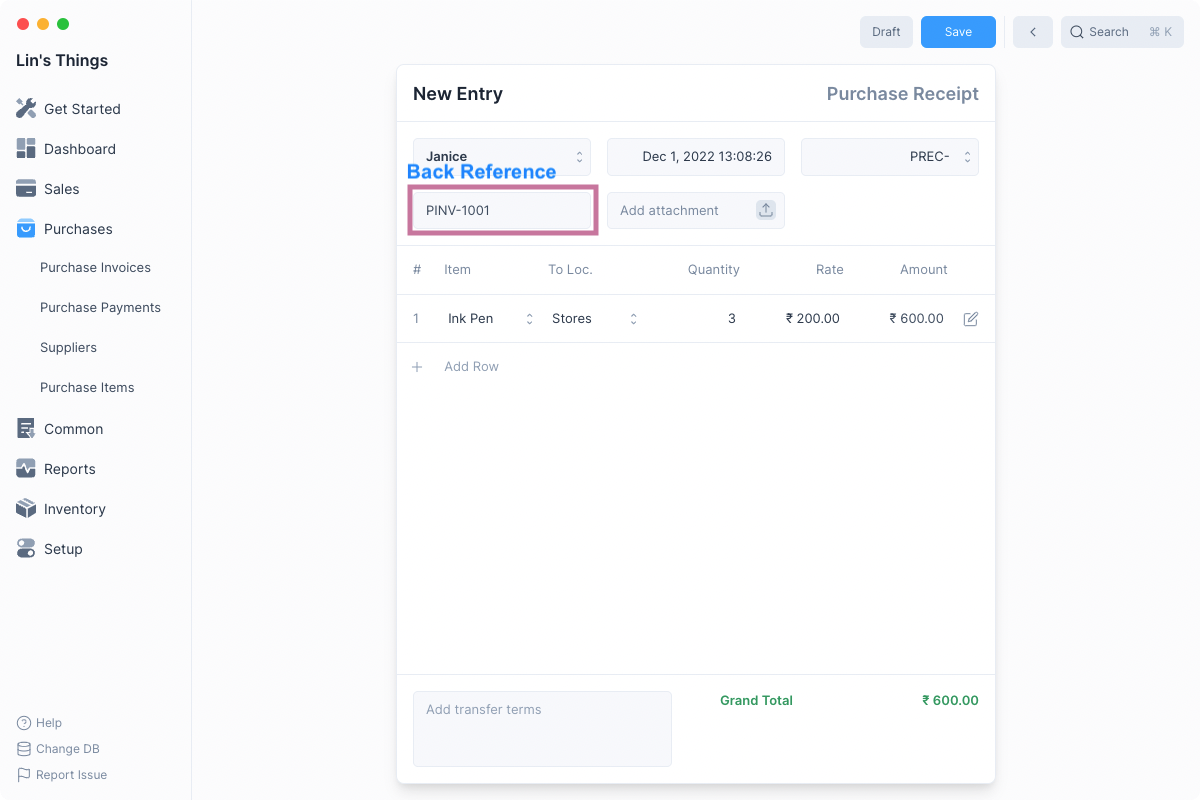
If you created the Purchase Receipt from a Purchase Invoice, all the rows will be filled out for you. Else you will have to enter the Purchase Receipt details.
If you created the Purchase Receipt from a Purchase Invoice, all the rows will be filled out for you. Else you will have to enter the Purchase Receipt details.
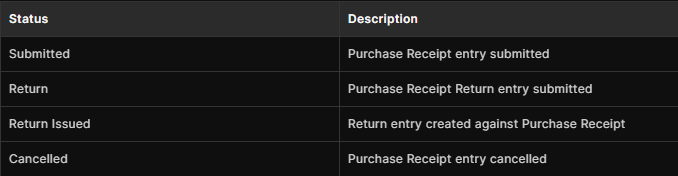
A Purchase Receipt can have one of the four following statuses:
Purchase Receipt Return
If you created a Purchase Receipt for an item that you returned, you can create a Purchase Receipt Return entry to reflect the return.
A Purchase Receipt Return entry can be created from an existing Purchase Receipt entry that has been submitted or from a new Purchase Receipt entry.
Enable Stock Returns
To create Purchase Receipt Returns the Stock Returns feature needs to be enabled. To do this, check the Enable Stock Returns option in Inventory Settings under the Features section.
Creating a Purchase Receipt Return
- Open the Purchase Receipt entry to be returned.
- Click on .
- The Party and Item details will be fetched from the original Purchase Receipt entry. You can set the quantity of Items returned.
- Save and Submit.
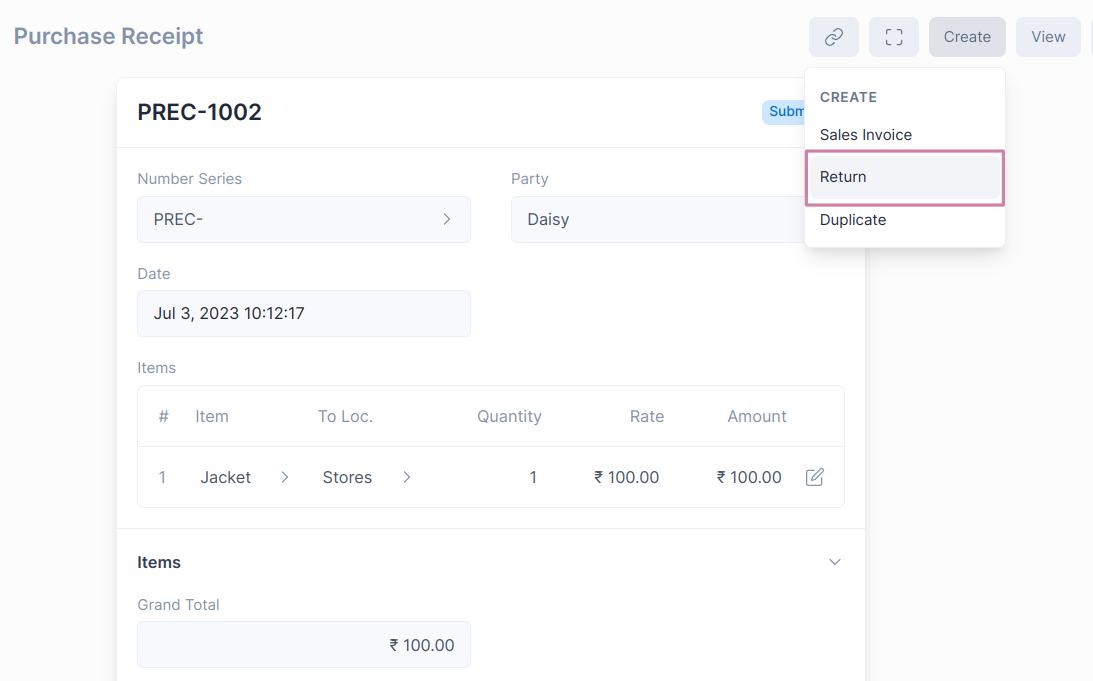
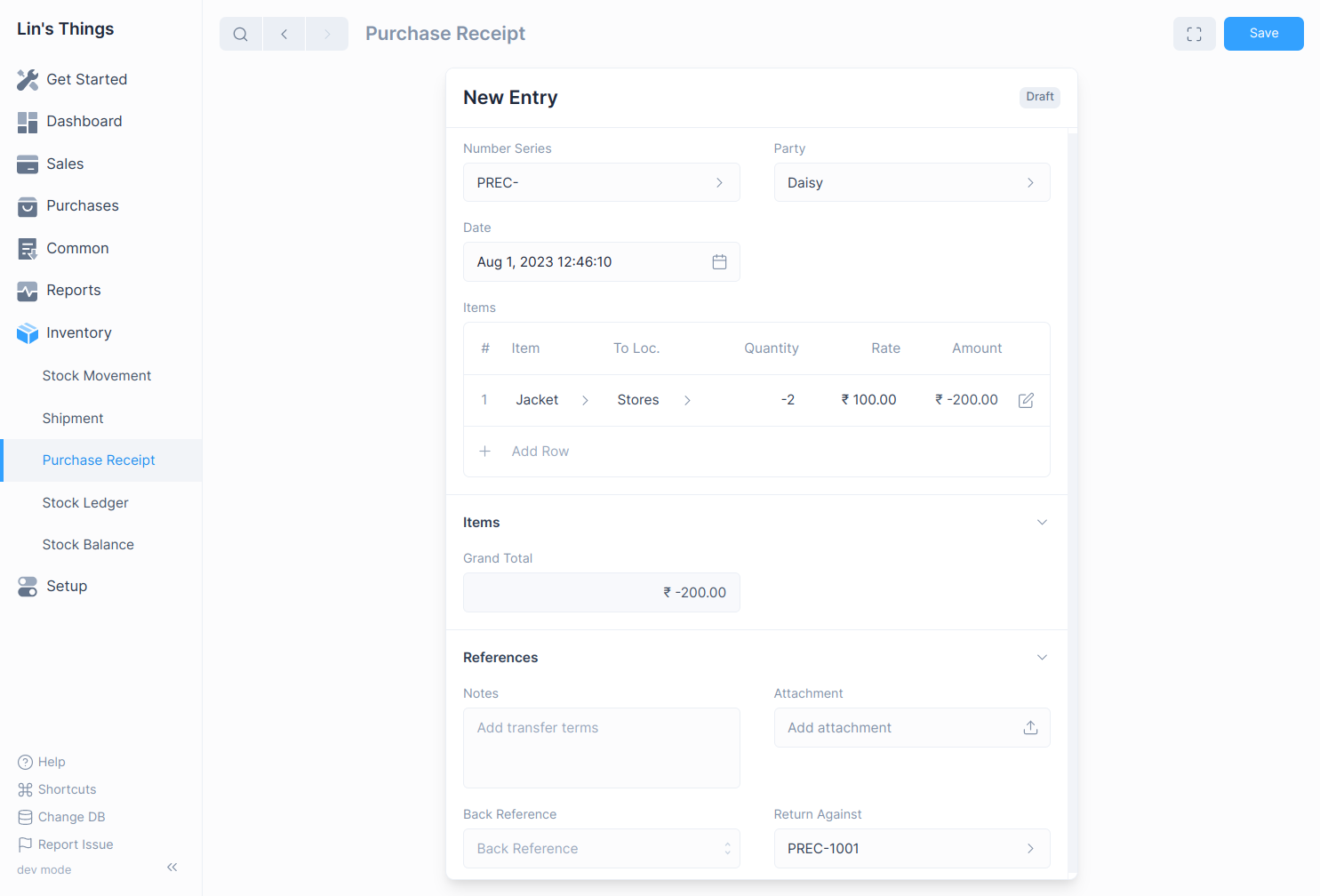
::: info Item quantity and Payment amount will be in negative to indicate that it is a return. :::
How does Purchase Receipt Return affect General Ledger
The Purchase Receipt Return entry will create General Ledger entries to reverse the impact of the original Purchase Receipt.
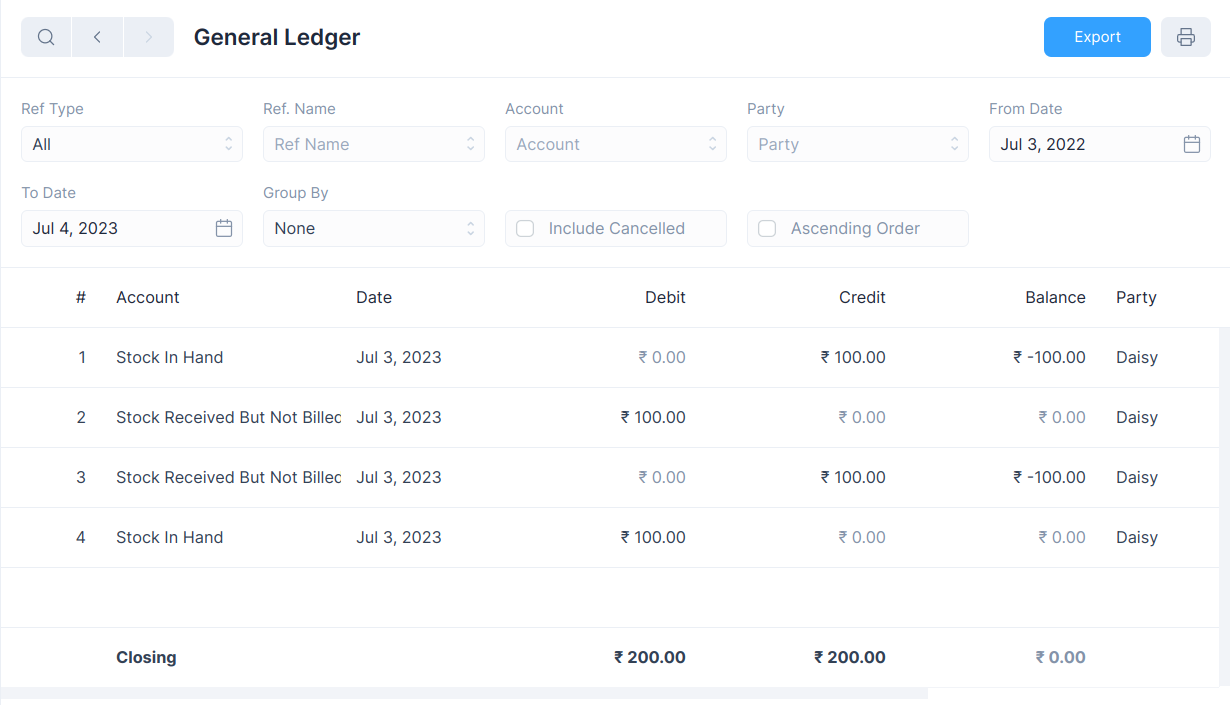
View Ledger Entries
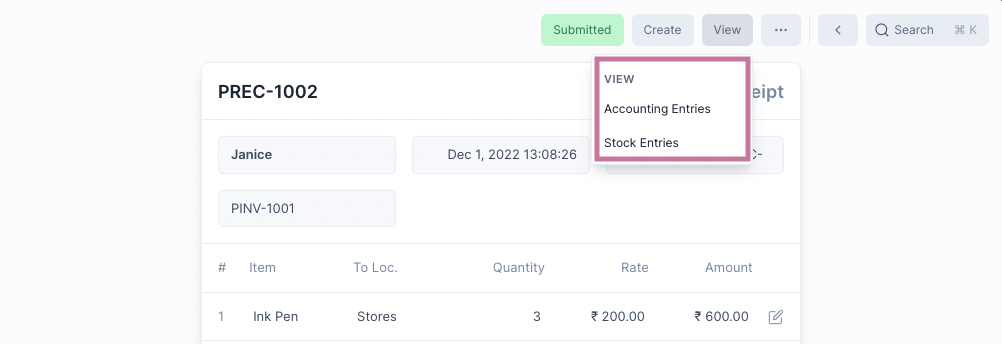
After a Purchase Receipt is submitted, both Stock Ledger and General Ledger entries are created.
To view these you can click on the View button and select the one you would like to see.