Purchase Invoices
Purchase Invoices are bills that your supplier sends you when you make a purchase.
It is a transactional entry that denotes a purchase.
Creating Purchase Invoices
If you have set up your BOT Books with Accounts, Taxes, Purchase Items, and Suppliers, creating a Purchase Invoice is as simple as it gets.
First navigate to the Purchase Invoices page
Then click on the bluebutton to open the Purchase Invoice form.
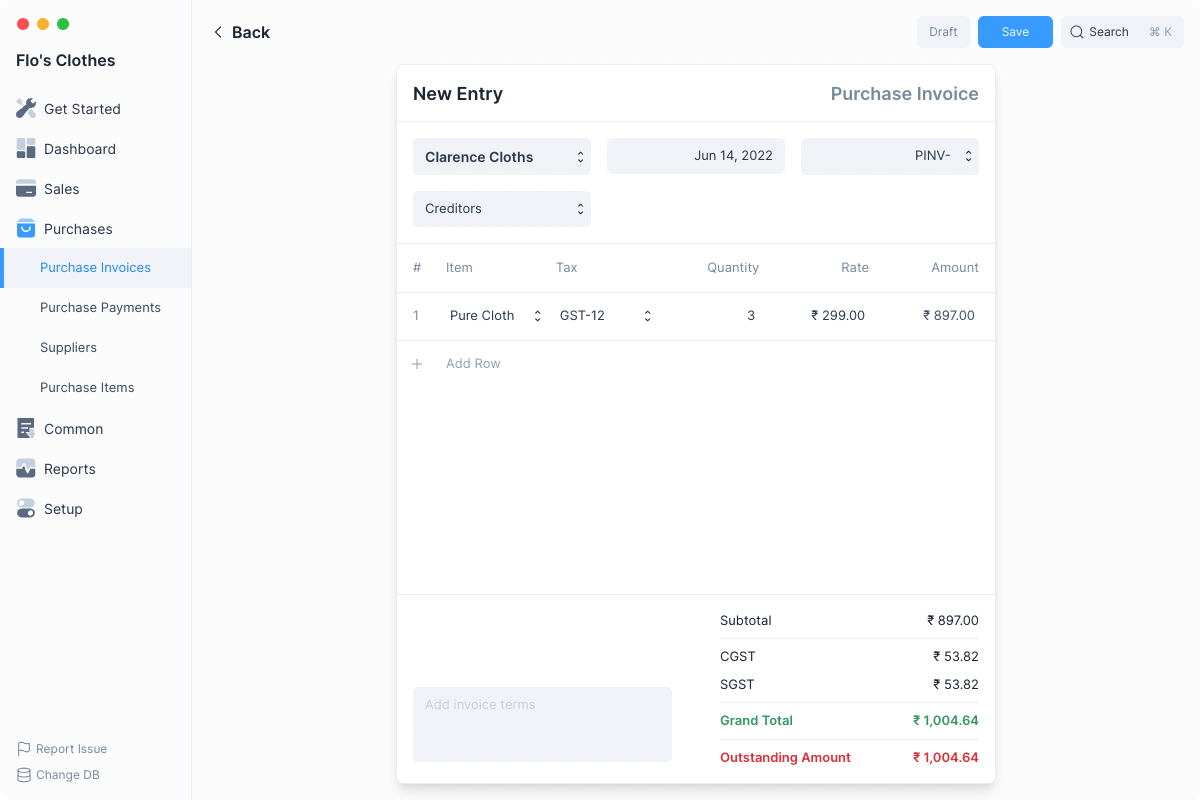
- Select the Supplier from whom you will be making a purchase.
- Click on Add Row and select the Item being purchased. Default Tax will be fetched you can change it if required.
- Enter the Quantity.
- You can add more items or if you are done, click on Save.
- Once finalized, click on Submit. BOT Books will do the required ledger entries against the appropriate accounts.
This invoice is now in “Submitted” state, it cannot be edited. The sales transaction has been recorded.
Making Purchase Payments
Once a purchase invoice has been submitted, you’ll need to record payment against it to denote that you’ve paid the money.
To make a Payment first navigate to the Purchase Invoice, then click on themenu button. Then click the Make Payment option.
This will open the Payment quick edit form with the outstanding amount auto-filled.
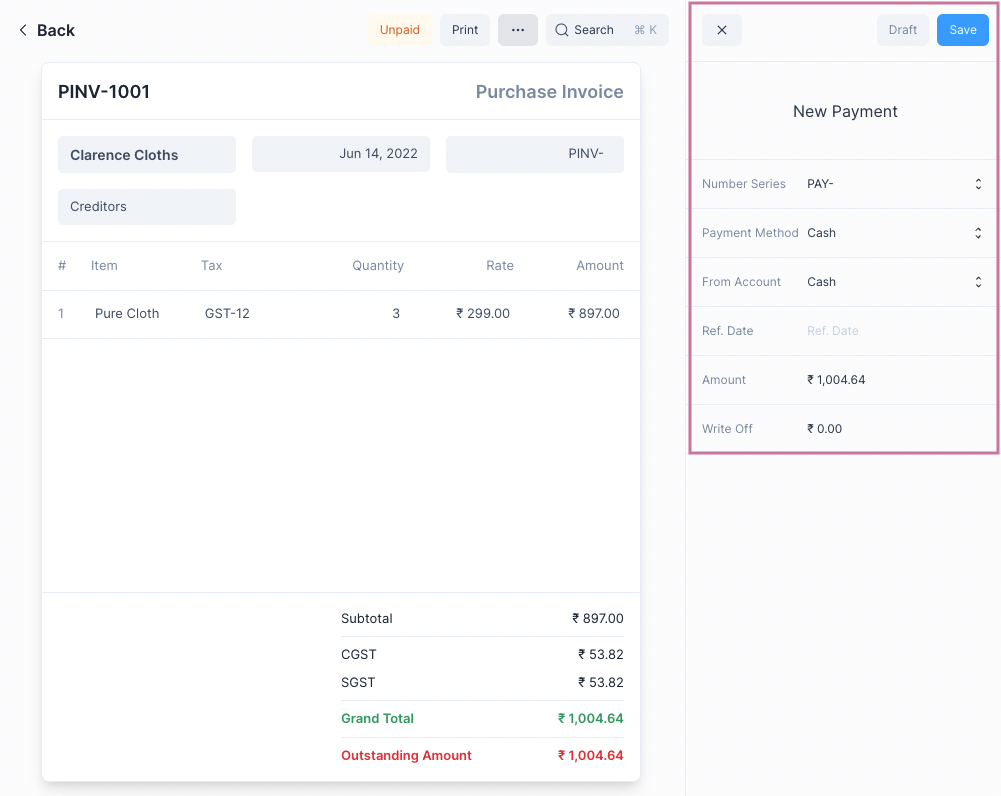
You can change the values and click on Save. This will Save and Submit the Payment.
On making the Payment, BOT Books will make the necessary ledger entries to increase the payment amount in Accounts Payable and decrease the amount in your Bank or Cash Account.
It will also update the Outstanding Amount on the invoice form.
::: info Purchase Invoice Status Until Payments are made to settel the Outstanding Amount, the Purchase Invoice will be in the Unpaid state.
Once the Outstanding Amount reaches 0, the status will change to Paid. :::
Auto Payments
You can simplify the Sales Invoice → Payment workflow by using Auto Payments. For this you just need to set the default accounts for Sales Payment.
This can be done in :
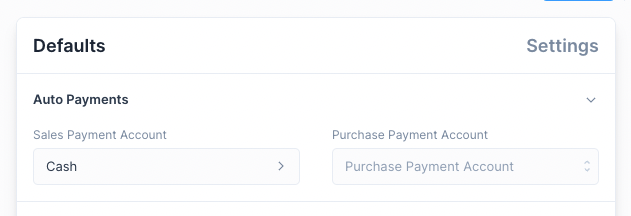
Once this is set, whenever you Submit a Sales Invoice a Payment entry will automatically be created.
::: tip Disable Auto Payment for a Sales Invoice
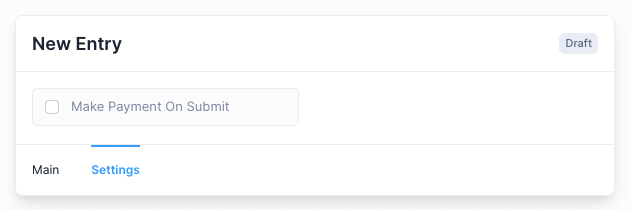
You can disable Auto Payment for a single Sales Invoice by unchecking the Make Payment On
Submit check box in the Settings tab before Submitting a Sales Invoice entry.
:::
Purchase Invoice Return
The user can create a Purchase Invoice Return directly from the original Purchase Invoice document or manually from the New Purchase Invoice Entry.
Creating a Purchase Invoice Return
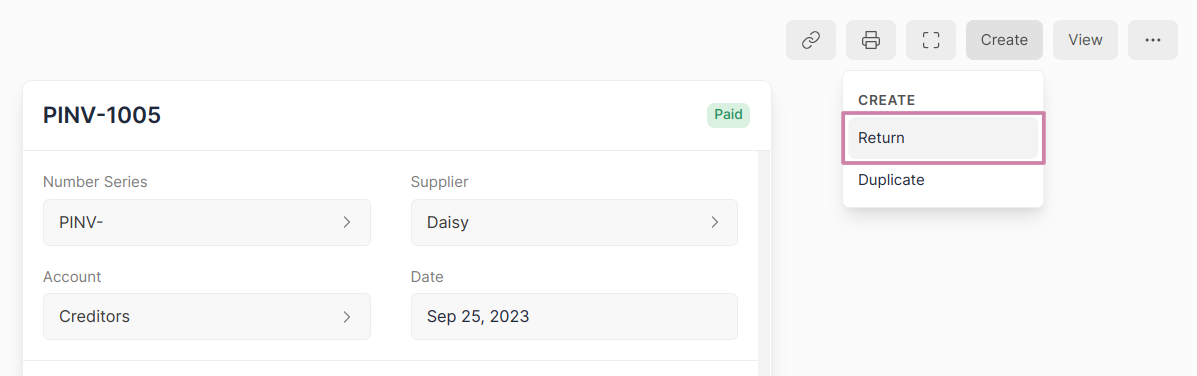
- Open the original Purchase Invoice document.
- Click on Create > Return.
- The Party and Item details will be fetched as set in the original Purchase Invoice document. You can set the quantity of Items returned in negative numbers.
- Save and Submit.
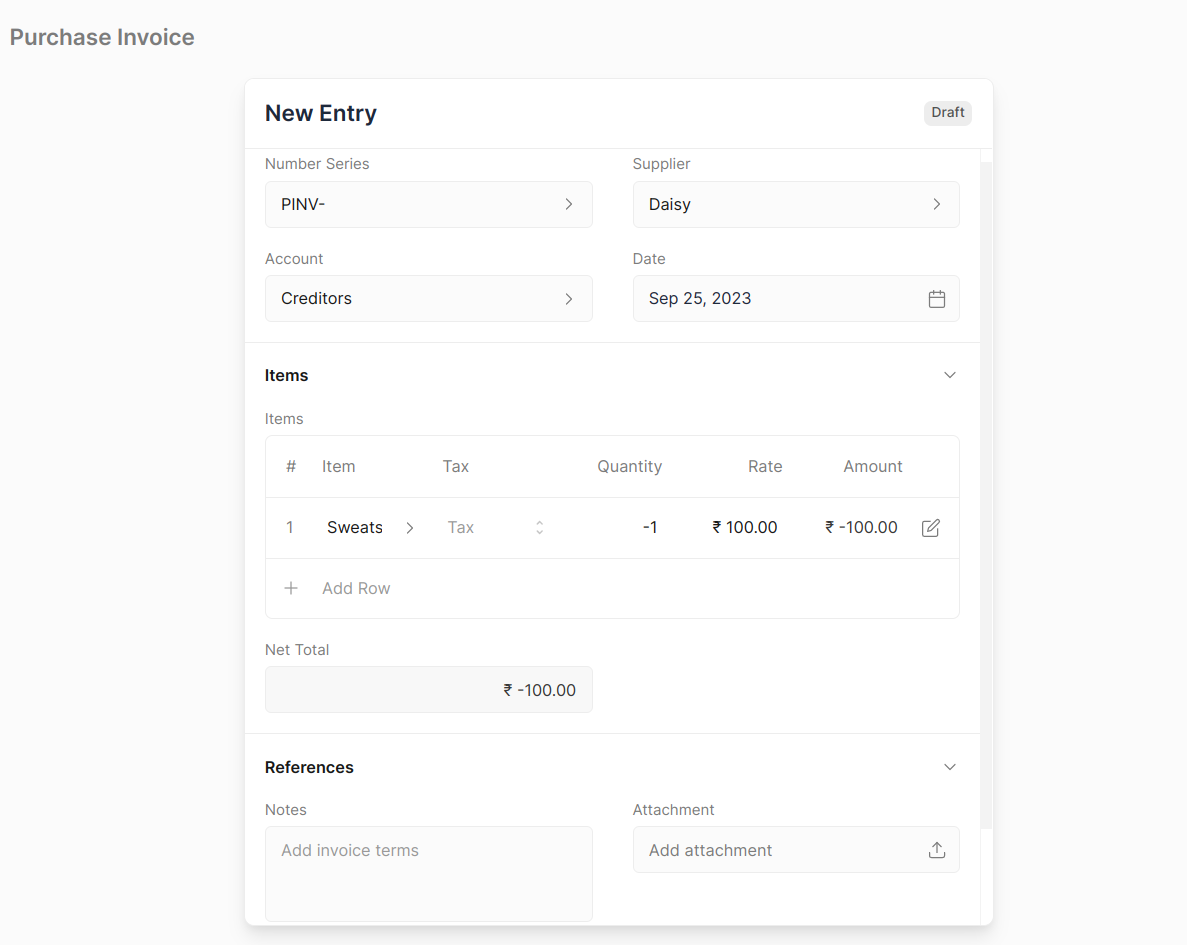
::: info The Item quantity and Payment amount will be in negative figures to indicate that it's a return. :::
Creating Manually
- Navigate to the Sales Invoice page
Purchases > Purchase Invoice
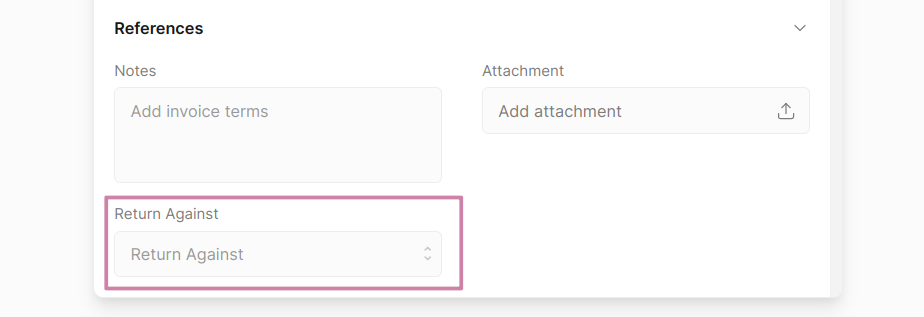
- Click on Return Against then select the target Sales Invoice against which customer returned the Items.
- Fill Item details.
- Save and Submit.
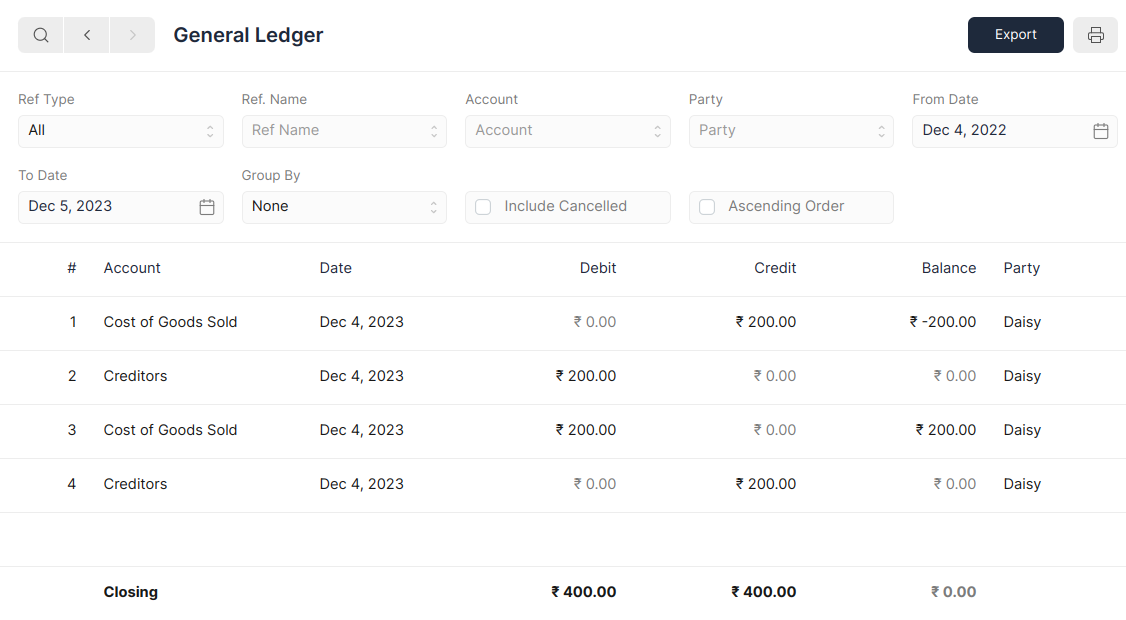
Purchase Invoice Return impact on General Ledger
The Purchase Invoice Return entry will create General Ledger entries to reverse the impact of the original Purchase Invoice.