Batches
Inventory in BOT Books can be maintained on the basis of Batches. Here a Batch of some Item is a uniquely grouped collection of those Items.
Enable Batches
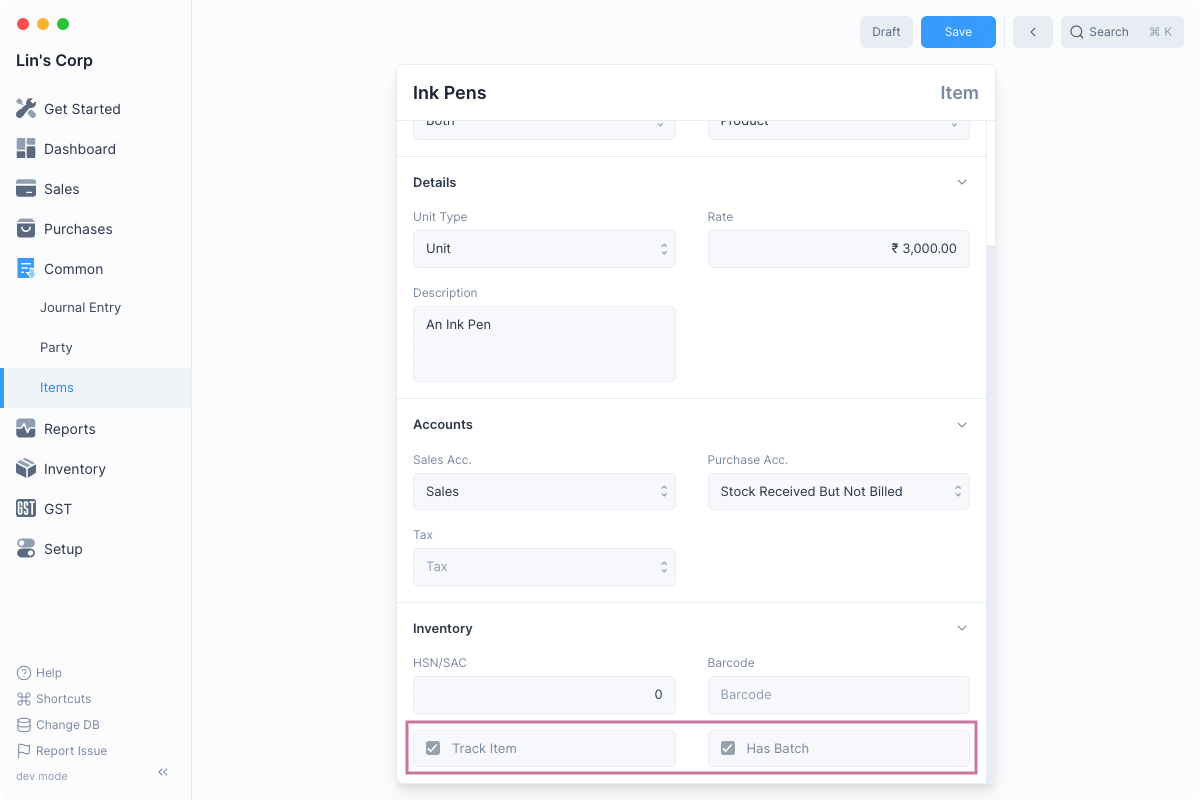
Once Batch has been enabled, you can mark an Item as a Batched Item by first checking Track Item and then Has Batch.
To navigate to the list of Batches, open Quick Search and then type "batch list" and select the first option.
Batched Items
Once you've enabled Serial Number, you can mark an item as a serialized item by first checking Track Item and then Has Serial Number
::: info Track Item
Has Batch can be enabled only if Track Item is set. :::
Mentioning Item Batch
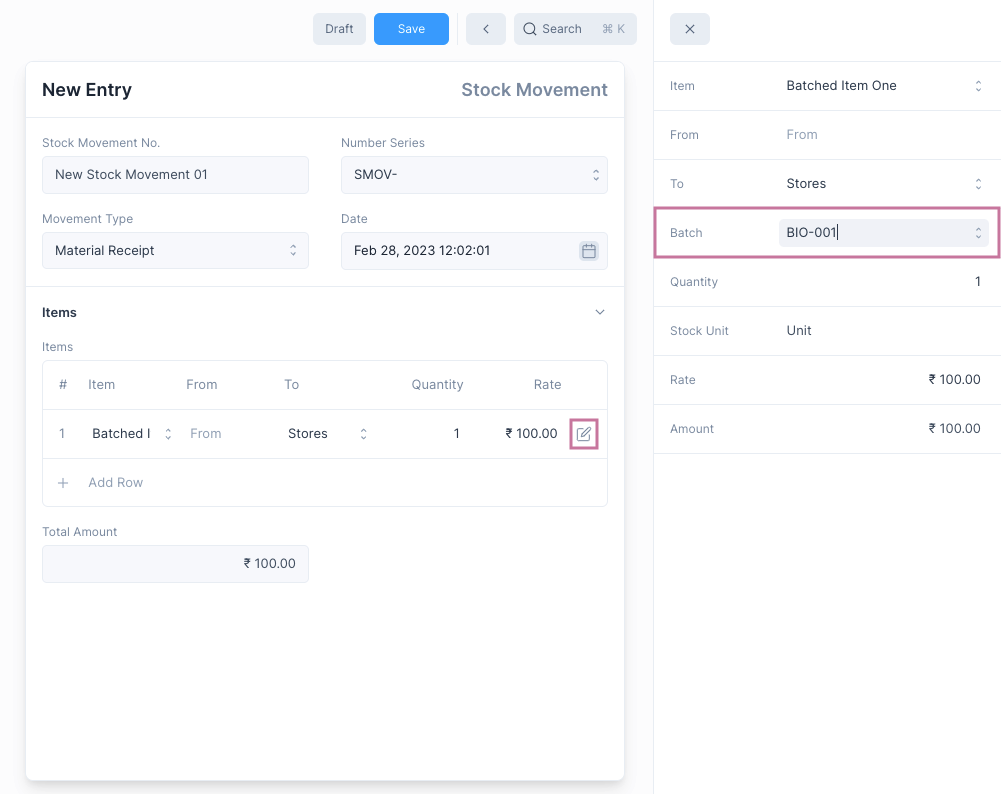
Once Batch has been enabled for an Item, transactions involving the item that update inventory such as Stock Movements, Shipments and Purchase Receipts will require mentioning the Item's Batch.
This can be done by clicking the edit button on the table row and selecting the batch.
Batch-wise Reports
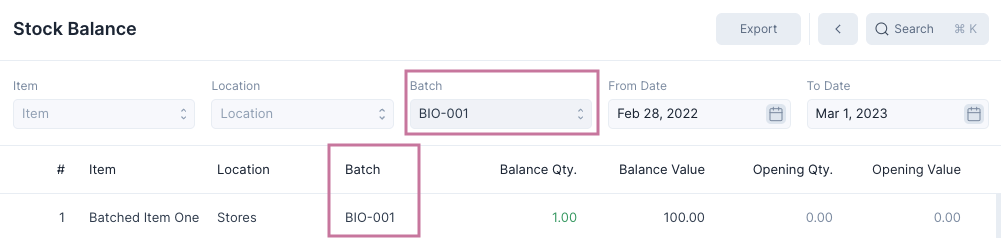
After batches have been enabled, the inventory reports i.e. Stock Ledger and Stock Balance will both have an additional column that mentions the Item's Batch.
You can also set Batch specific filters to show information that relates only to the selected Batch.